
Guide · PLS-POLE 21 · 5 minutes
How to Export Results XML from PLS-POLE
Every FDES tool that reads analysis results uses the XML post-processor file that PLS-POLE writes after a run. PLS documents this file as the supported way to read results from outside the program. It is switched off by default, so here is how to turn it on and where to find it.
1. Turn on the XML post-processor file
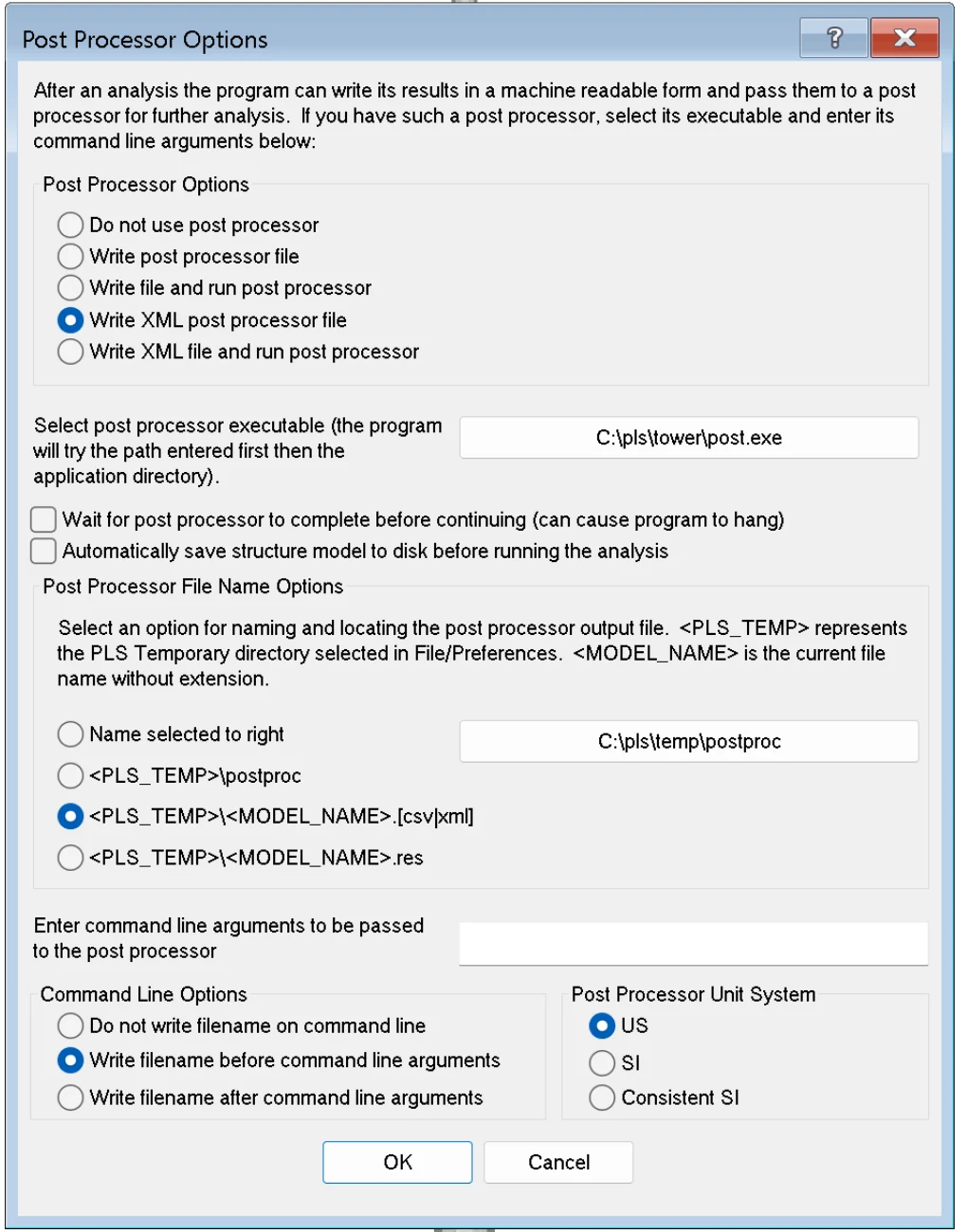
- Open the model in PLS-POLE and go to General > Post Processor Options.
- Under Post Processor Options select Write XML post processor file. Do not select the "run post processor" options; nothing needs to be launched.
- Under Post Processor File Name Options choose <PLS_TEMP>\<MODEL_NAME>.[csv|xml]. The file is then named after the model. If you prefer a fixed folder, choose "Name selected to right" and type a path.
- Under Post Processor Unit System keep the units you work in. The FDES tools read the units from the file and show them next to every value.
- Click OK.
2. Run the analysis
- Run Model > Check first if the model changed.
- Run the analysis with Model > Run. The XML is written when the analysis finishes; the usual report windows open as normal.
- Save the model if you want the post-processor setting kept for next time. The setting is stored with the model.
3. Find the file
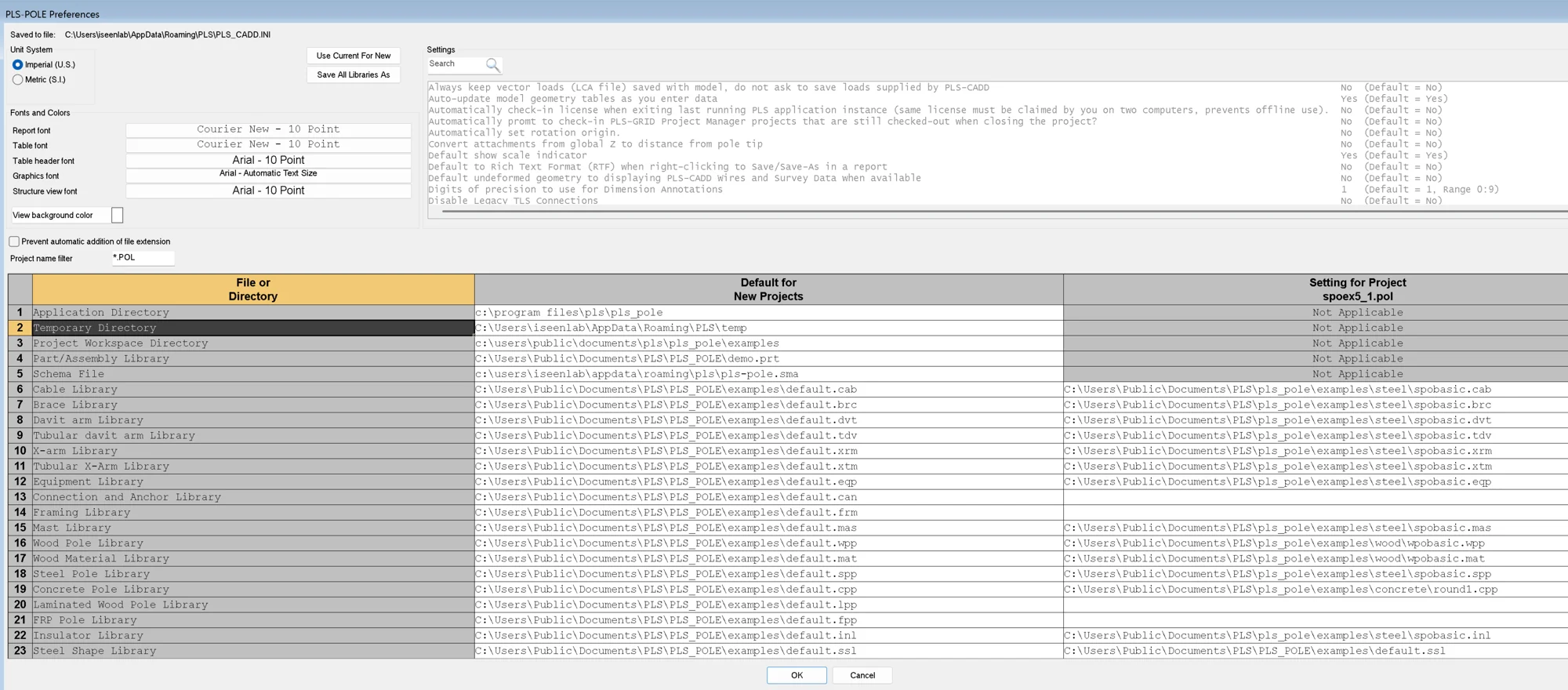
- Open File > Preferences. Row 2 of the file table, Temporary Directory, is the <PLS_TEMP> folder. On most installations it is
C:\Users\<you>\AppData\Roaming\PLS\temp. - Open that folder in Windows Explorer. The results file is
<model name>.xml, for examplespoex5.xmlfor the modelspoex5.pol. - Check the size. A file of 0 bytes means the run did not complete or the option was changed after the run; run the analysis again.
Where the steel pole library (.spp) is
The library the model uses is shown in two places: the title bar of Components > Steel Pole, and row 18, Steel Pole Library, of the same File > Preferences table under "Setting for Project". The PLS-POLE examples use spobasic.spp in C:\Users\Public\Documents\PLS\pls_pole\examples\steel. Manufacturer libraries downloaded from Power Line Systems are usually kept in a project or company folder; the Preferences row tells you which one the open model points at.
How to save the load file (.lca)
Vector loads live in a separate .lca file referenced by the model. Open Loads > Vector Loads (LCA File); the dialog shows the file the model uses and lets you Save As a copy. If the model was loaded from PLS-CADD, the loads may come from a .lic wire load file instead; the Vector Loads dialog is then greyed out and the FDES LCA tools do not apply.
Which tools need which file
| Tool | Required | Optional |
|---|---|---|
| Results Summary | results .xml | .pol, .spp, .lca for cross-file checks |
| Revision Compare | two results .xml | .pol, .spp, .lca per revision |
| Foundation Reactions | results .xml | |
| Fabrication Check | results .xml | |
| LCA Builder and Validator | .lca to validate, or nothing to build | .pol for label checks and label import |
| Steel Pole Library Explorer | nothing; built-in manufacturer libraries | your own .spp files |
PLS-POLE and PLS-CADD are trademarks of Power Line Systems, part of Bentley Systems. FDES Technologies is not affiliated with or endorsed by Power Line Systems or Bentley Systems. Screenshots are from PLS-POLE version 21.01.
Same XML, finished drawings
That XML Is All FDES Needs to Draw the Pole.
FDES automation reads the same results file and produces the 3D model, fabrication drawings and BOM on Inventor, AutoCAD or SolidWorks, to your templates and part numbering.
- PLS-POLE XML to 3D model, drawings and BOM
- Inventor, AutoCAD, SolidWorks and more
- Your templates, part numbers and standards
- Free automation audit, no commitment